How to Search Google by URL: The Complete Guide
A url search google query works two ways: type site: followed by the domain or exact address into Google's search box to find a URL in public results, or paste the URL into Google Search Console's URL Inspection tool to check its indexing status. Both methods take under a minute once you know the syntax.
Key Takeaways
- The site: operator, typed directly into Google's search bar, is the fastest way to find any URL, domain, or subfolder currently showing in Google Search.
- Google Search Console's URL Inspection tool is the only reliable way to check whether a specific page you own is indexed, versus just visible in a manual search.
- A "URL is on Google" verdict in Search Console means the page is eligible to appear in results, not that it's guaranteed to rank for any given search term.
- Common indexing blockers include robots.txt disallow rules and noindex tags, plus pages that return errors when Googlebot tries to fetch them.
- The 1st Google search result receives a disproportionate share of clicks, which is why confirming your booking pages are indexed correctly matters for a vacation rental business.
- inkSTR automates article generation and publishing so your vacation rental content gets indexed and found through the same URL search google techniques covered here, without you manually checking every page.
If you run a short-term rental website, you'll eventually need to confirm that a specific page, an updated listing, or a new blog post is visible in Google. Maybe you published a new cabin description last week and want to know if it's showing up. Maybe a guest mentioned they couldn't find your booking page through a search. Either way, knowing how to search Google by URL is a basic diagnostic skill every operator should have.
This guide walks through the query patterns Google documents for finding a URL in public search results, how to open a URL directly, and how to use Search Console's URL Inspection tool to diagnose indexing problems. Google processes an enormous volume of searches every year, and getting your pages properly indexed is not optional if you want direct bookings instead of relying entirely on Airbnb or VRBO traffic.
We built inkSTR because vacation rental operators don't have time to become SEO technicians on top of running a property. Once you understand the mechanics below, you'll also understand why consistent publishing and clean indexing matter more than any single trick.
How to Search Google by URL?
Searching Google by URL means using the site: search operator, typed directly into Google's search box, to limit results to a specific domain, subdomain, or exact page address. This is the standard method Google documents for finding whether a URL, or a whole website, is showing up in search results.
For example, typing site:example.com returns results from example.com, plus any subdomains like www.example.com or blog.example.com. Google's own documentation confirms that the site: operator includes subdomain matches by default, which surprises a lot of first-time users expecting an exact match only.
You can narrow it further. Adding a path, like site:example.com/cabins, restricts results to that specific folder. Adding a full URL, like site:https://example.com/cabins/mountain-view, checks whether that exact page appears. This remains the fastest manual check available, though it's approximate rather than a definitive indexing audit.
Running this kind of query manually across dozens of listing and blog pages gets tedious fast, especially if you're managing content for multiple properties. That's part of why we built inkSTR's Content Calendar to auto-publish on a predictable schedule, so you're not left guessing which pages went live and which didn't.
How to Find a URL on Google?
Finding a URL on Google means combining the site: operator with a keyword, so you can locate a specific page even if you don't remember its exact address. Google documents this pattern as a way to determine whether a particular page is relevant for a target term, not just whether it exists in the index.
The syntax looks like this: site:example.com lemon. This returns URLs on that domain that may be relevant to the word "lemon." For a vacation rental site, you'd swap in something like site:yourrentalsite.com hot tub cabin to find your specific listing page for that property type.
There's a second use case worth knowing: combining a domain with a topic to check whether Google associates a page with buying-intent language at all. Google's documentation gives an example of site:https://www.example.com/ramen tsukemen, showing pages under a URL prefix relevant to a specific dish. The same logic applies to a rental page and a guest search term like "pet friendly" or "sleeps 8."
The catch is that site: results are approximate. They're not a complete indexing audit. If a page doesn't show up, that doesn't automatically mean it's deindexed, and if it does show up, that doesn't mean it ranks for anything competitive. Manually running these checks across a growing blog is exactly the kind of repetitive task that eats an afternoon. inkSTR's Keyword Research tool identifies the terms guests search before you publish, so you're not reverse-engineering relevance after the fact.

How Can I Open My URL?
Opening your URL means either pasting the full address directly into a browser's address bar, or, if you want to check its Google status at the same time, entering it into Search Console's URL Inspection tool. These are two different actions, and mixing them up is one of the most common mistakes operators make.
Google is explicit on this point: to confirm whether an exact page is on Google, you copy the URL, remove the http:// or https:// prefix, and strip off everything after a question mark if there's a tracking parameter. Then you paste what's left into Google's search box, not the browser's address bar. Pasting into the address bar just opens the page directly, it tells you nothing about indexing.
If you own the property website and want indexing detail, Search Console is the right tool. You enter the full page URL into the search bar at the top of any Search Console page, or click the inspect icon next to a URL in reports like Coverage or Performance. The URL you inspect has to belong to the currently opened Search Console property, which trips up multi-property managers running several separate sites under one account.
For operators juggling multiple listings, each with its own domain, this becomes a real time sink. inkSTR's multi-project architecture gives each property its own independent content pipeline from a single dashboard, so you're not logging in and out of separate Search Console properties just to open and check individual pages.
How to Search Using URL?
Searching using a URL means feeding the address itself, or a fragment of it, into Google's search box as your query, rather than typing descriptive keywords. This is distinct from typing a URL into a browser bar, and it's the method Google's documentation consistently points to for indexing checks.
Beyond the basic site: operator, there are a few ready-to-use patterns worth keeping on hand. Searching a whole domain uses site:yoursite.com. Searching a subfolder uses site:yoursite.com/blog. Searching one exact page uses the full URL after site:, and pairing a URL prefix with a keyword, as shown in Google's site:https://example.com/recipes/tsukemen.html style example, helps confirm whether that specific page is indexed and topically relevant.
None of these query types substitute for checking your site's technical health. If a page returns a soft 404, sits behind a noindex tag, or gets blocked by a robots.txt rule, no amount of clever site: querying will make it appear, because the page was never eligible to begin with. That distinction, between "not showing in a search" and "not indexable," is where most self-diagnosed SEO problems live.
This is the gap between manually writing and publishing content versus running it through a system built for indexing from the start. inkSTR's AI Content Writer generates SEO-optimized drafts, and Auto-Publishing pushes them live to Wix or WordPress without the manual copy-paste steps where noindex tags and broken formatting tend to creep in unnoticed.
What Does the URL Inspection Tool in Search Console Actually Show You?
The URL Inspection tool is a Google Search Console feature that reports whether a specific page you own is indexed, how Google last crawled it, and what's blocking it if it isn't showing in results. It's the only tool that gives a definitive answer instead of an approximation.
When you inspect a URL, Google returns an overall verdict, then breaks it into diagnostic categories. Crawl allowed should read "Yes." Page fetch should read "Successful." Indexing allowed should read "Yes." A "No" on crawl allowed usually points to a robots.txt rule blocking that path. A "No" on indexing allowed usually means a noindex directive is sitting on the page, often left over from a staging environment that never got cleaned up before launch.
A "URL is on Google" verdict only means the page is eligible to appear in search results. It doesn't guarantee it will show for any particular query, and it doesn't guarantee it will rank on page one. Ranking is a separate, ongoing competition, not a one-time indexing checkbox.
| Verdict Field | What "Yes/Successful" Means | Common Cause When It Fails |
|---|---|---|
| Crawl allowed? | Googlebot can access the page | robots.txt disallow rule |
| Page fetch | The server returned the page successfully | Server error, timeout, or login wall |
| Indexing allowed? | No directive is blocking indexing | noindex meta tag or header |
| URL is on Google | Page is eligible to appear in results | Not yet crawled, low-quality signal, or duplicate content |
You can also switch between "Google Index" (what Google has already stored) and a "Live Test" of the current page, using the Test live URL option. The Live Test requires the page be publicly accessible without a login, even if it hasn't been indexed yet or previously failed. Once you fix an issue, Google directs you to select Request indexing from the inspection result page. This is exactly the kind of technical detail that gets skipped when operators write blog posts themselves, and it's why we designed inkSTR's pipeline to publish cleanly rather than leave indexing fixes as an afterthought.
Manual Site Operator vs URL Inspection API: What's the Real Difference?
The manual site: operator and the URL Inspection API both check URL status, but they differ sharply in scale and output detail. The manual operator works on any public URL and needs no account. The API only works on URLs you verify ownership of, and returns structured diagnostic data instead of a visual search results page.
The API endpoint is a POST request to https://searchconsole.googleapis.com/v1/urlInspection/index:inspect, requiring an inspectionUrl and a siteUrl, where the inspection URL must be fully qualified and sit under the verified property. Google documents daily and per-minute query quotas for this endpoint, giving larger portfolios enough headroom to automate checks across many pages.
For a solo host with one listing site, the manual site: operator and the Search Console web interface are almost always enough. For a property management company running content across 15 or more units, checking each page one by one through the web interface stops being practical. That's the exact operational wall where manual processes break down, and it's a large part of why property managers come to us asking for a system that removes that repetitive workload entirely.
| Method | Ownership Required? | Live Test Available? | Best For |
|---|---|---|---|
| Manual site: search | No | No | Quick public checks on any domain |
| Search Console web UI | Yes, verified property | Yes | Diagnosing a handful of your own pages |
| URL Inspection API | Yes, verified property | Yes | Automated checks across large portfolios |

Ready to automate your content marketing?
inkSTR handles keyword research, content strategy, article writing, and publishing, all on autopilot.
What Are the Most Common Indexing Problems Vacation Rental Sites Run Into?
The most common indexing problems for vacation rental websites are accidental noindex tags left from staging, robots.txt rules blocking booking pages, thin duplicate content across near-identical listing pages, and soft 404 errors on seasonal pages taken down and re-added each year. Each one is diagnosable through the URL Inspection tool.
Multi-property managers run into duplicate content most often. If five cabin listings share 90% of the same boilerplate paragraph describing the mountain town, Google may treat several of those pages as non-canonical duplicates and choose only one to show, burying the rest. This is a positioning problem as much as a technical one, and it's covered in more depth in our guide on why generic travel content kills conversions.
New hosts most often hit the noindex problem. A developer builds the site on a staging URL with noindex tags applied by default, launches, and forgets to remove them. The site looks fine to a human visitor, and gets zero organic traffic, because Googlebot was told explicitly not to index anything.
Seasonal cabin or lake house pages create soft 404 issues when a listing gets deactivated for the off-season, then relisted months later at the same URL. Google may have already flagged the gap as an error page, and re-indexing takes a manual request. If your competitors rank consistently for "vacation rental [market] with hot tub" while you disappear every winter, this is frequently the reason. inkSTR's Content Calendar keeps publishing steady year-round instead of leaving seasonal gaps that create this kind of indexing whiplash.
What's the ROI of Getting Your URLs Properly Indexed and Ranking?
The ROI of proper indexing comes down to a simple comparison: every booking driven through your own site instead of an OTA avoids the 17-19% combined host and guest fees Airbnb and VRBO charge, and a single direct booking is typically worth $1,000 to $4,000 in revenue.
Writing content that gets indexed and ranks takes real effort. A freelance travel writer charges $300 to $700 per quality blog post, and writing one well manually takes 3 to 5 hours of research and drafting. Multiply that across a content calendar meant to cover twelve months of seasonal search terms, and the cost adds up fast for an independent host or a small management company.
A ranking blog article, once indexed and stable, can drive organic search traffic for 2 to 5 years. That's a long payback window compared to a paid ad campaign that stops the moment you stop paying for it. Content marketing tends to generate leads more efficiently than paid search for many software and service businesses, which is a big part of why we built inkSTR's entire pricing model, starting at $99 per month, around sustained publishing instead of one-off article purchases.
As of September 2026, articles published across all inkSTR customer sites have surpassed 3,900, and connected customer sites have generated more than 2.5 million Google Search impressions and over 19,500 clicks in the trailing 90 days. Those pages got properly indexed, using the same fundamentals covered in this guide, and then kept publishing on a schedule.
How Do You Prioritize Fixing Indexing Issues Across a Multi-Property Portfolio?
Prioritizing indexing fixes across a portfolio means triaging by revenue impact first, checking your highest-traffic and highest-converting listing pages before spending time on low-priority blog posts. A booking page with a noindex tag costs you far more than a single outdated blog entry.
- Run
site:yourdomain.comacross every property subdomain to get a quick sense of what's showing versus missing entirely. - Inspect each primary booking or listing page individually in Search Console, checking crawl, fetch, and indexing status.
- Fix noindex tags and robots.txt blocks on booking pages first, since these directly cost you direct-booking revenue.
- Request indexing on any page you've just fixed, rather than waiting for Google to recrawl on its own schedule.
- Address duplicate boilerplate across similar listing pages by rewriting descriptions with property-specific detail.
- Set a recurring schedule to check newly published or reactivated seasonal pages, rather than a one-time audit.
Common mistakes we see: treating a single site: search as a full audit, and requesting indexing repeatedly on a page that's actually blocked by robots.txt, which does nothing until the block is removed. A "URL is on Google" verdict also doesn't mean the page will rank for a specific keyword. Indexing and ranking are two separate problems, and confusing them wastes time chasing the wrong fix. For a deeper look at ranking mechanics specifically, see our guide on what STR operators need to know about ranking on Google.
If you're managing this across 10 or more properties, doing this manually every month isn't a good use of your time. This is exactly the kind of repetitive operational load inkSTR's multi-project dashboard was built to absorb, running independent content pipelines per property while you focus on the properties themselves rather than search diagnostics.
Frequently Asked Questions
Is the site: operator the same as checking if a page is indexed?
Not exactly. The site: operator shows an approximate set of results Google is currently displaying for that domain or URL, but it's not a definitive indexing record. For a precise answer, Google's URL Inspection tool in Search Console is the authoritative source, since it reports the actual crawl, fetch, and indexing status for a page you own.
Why doesn't my page show up when I search site:mydomain.com even though I know it exists?
This usually means the page hasn't been crawled yet, is blocked by a robots.txt rule, carries a noindex tag, or Google considers it a low-value duplicate of another page. Checking the exact URL in Search Console's URL Inspection tool will tell you which of these applies, rather than guessing from the search results alone.
How do I open a URL directly without it being a Google search?
Paste the full address, including https://, into your browser's address bar and press enter. This opens the live page directly and has nothing to do with checking indexing status. If you want indexing information instead, use Google's search box with the URL stripped of its protocol, or use Search Console's URL Inspection tool.
How long does it take for a newly published vacation rental blog post to show up in Google?
There's no fixed timeline, but new pages on an established, regularly crawled site often appear within days to a few weeks. Sites that publish sporadically or have crawl issues can take longer. Consistent publishing on a set schedule, which is what inkSTR's workflow is built around, tends to produce faster and more predictable indexing over time than irregular posting.
Can I use the URL Inspection tool on a website I don't own?
No. The URL Inspection tool only works on properties you've verified ownership of in Search Console. For any other domain, your only option is the public site: search operator, which gives an approximate view of what's showing in results, not a full diagnostic report.
What does it mean if Search Console says "Crawl allowed: No"?
It means a robots.txt rule on your site is explicitly blocking Googlebot from accessing that URL. Until you edit the robots.txt file to remove that restriction, no indexing request will help, because Google is never permitted to fetch the page in the first place.
Do I need to request indexing every time I publish a new post?
Not strictly, since Google will eventually recrawl an active site on its own. But requesting indexing through Search Console right after publishing, or after fixing an issue, speeds up the process and gives you immediate confirmation the page was submitted correctly.
Conclusion
Searching Google by URL comes down to two tools used for two different jobs: the site: operator for a quick public check, and Search Console's URL Inspection tool for a definitive answer about a page you own. Getting comfortable with both means you'll stop guessing whether your listing pages and blog content are visible.
Indexing checks only matter if you're publishing consistently in the first place. That's the piece most independent hosts and multi-property managers struggle to sustain on top of everything else running a rental business demands, and it's the gap we built inkSTR to close.
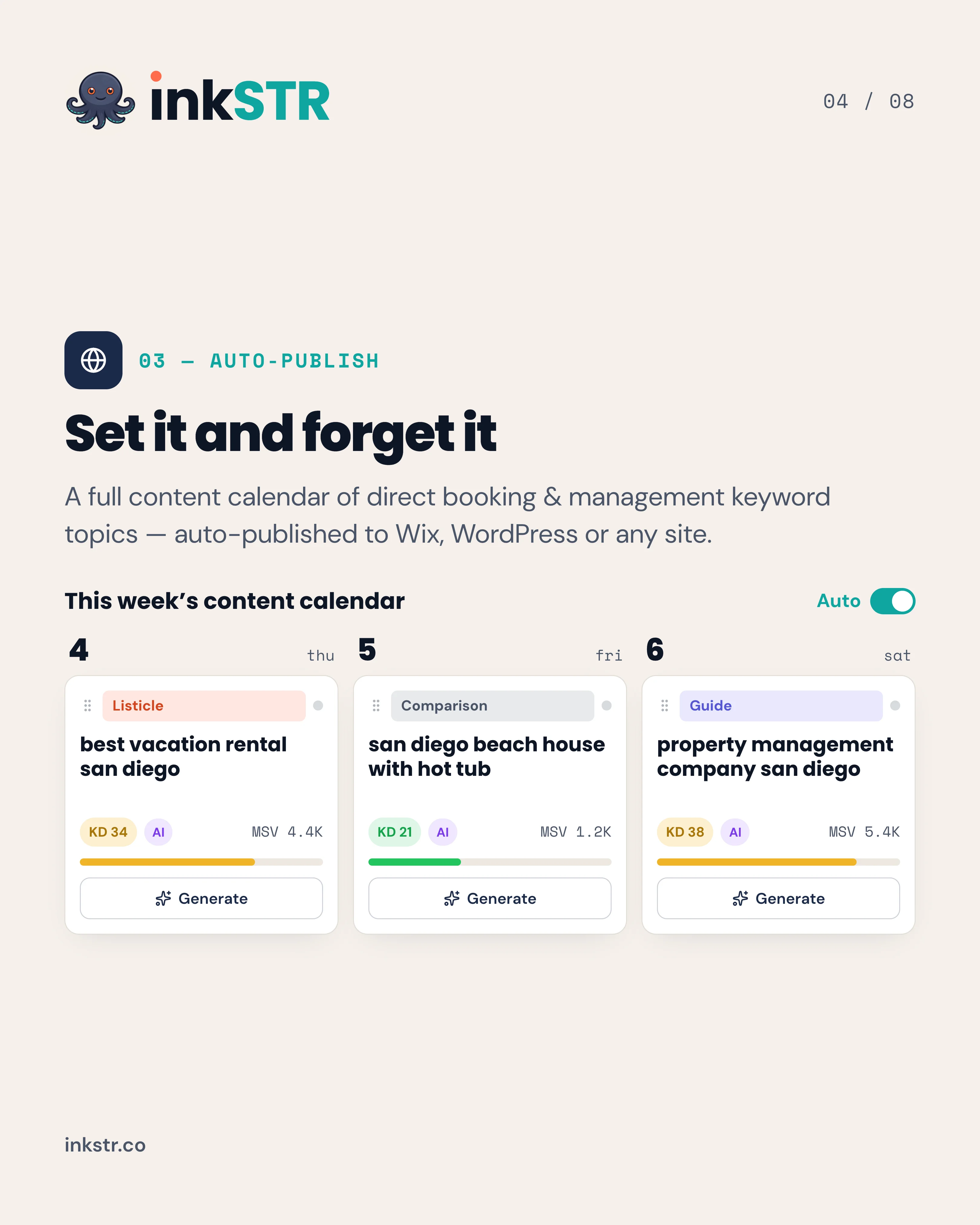
If checking whether your pages are indexed keeps falling to the bottom of your to-do list, get started with inkSTR and let the content calendar handle publishing on a steady schedule while you focus on the property.
Content powered by inkSTR.co
Enjoyed this article? Share it:
Get more of inkSTR in Google Search
Add inkstr.co as a preferred source and our articles show up more in Top Stories, AI Overviews, and AI Mode — with a “Preferred” badge.
Get more guides like this
New SEO and AI-search guides, straight to your inbox. No spam, unsubscribe anytime.